

Prices and currencies: common price, exchange rates and rounding
In Lekkolot you can set a product’s price once — the common price. Every platform you have not given a separate price lists the product at the common price, in the currency of its account. If the account’s currency is different, Lekkolot converts the price at your exchange rate and rounds it by your rules. Any platform can have a price of its own: it always takes precedence.
On this page, a “product” is a product in Lekkolot, and a “listing” is its listing on a particular platform.
How the price of a listing is chosen
Section titled “How the price of a listing is chosen”For each listing, Lekkolot chooses the price as follows:
- The platform has a price of its own — the listing gets exactly that price, in its currency, unchanged. Exchange rates and rounding never touch it.
- No price of its own, but a common price — the listing takes the common price in the currency of the platform account:
- the currencies match — the price goes as is (on Prom.ua and RIA.com, rounded to a whole number);
- the currencies differ — the price is multiplied by the exchange rate and rounded by the rounding rule of the account’s currency;
- there is no exchange rate for this pair of currencies — the price cannot be computed (“no exchange rate”);
- it is not known which currency to list in — the price cannot be computed (“no currency”).
- Neither — the listing has no price.
Zero in a price field means the same as an empty field.
A listing without a price is not sent to OLX, Allegro or eBay, not even with a zero price. It waits, and the product’s synchronization status shows the reason: “no price”, “no exchange rate” or “unknown price currency”. On platforms that take products from an import file (Prom.ua, RIA.com, Avtopro, Facebook Marketplace), a product that takes the common price which cannot be computed right now is left out of the file.
Setup at a glance
Section titled “Setup at a glance”- Set the company currency.
- Check the currency of your accounts in Integrations, especially OLX and Avtopro.
- Add exchange rates for the “product currency → account currency” pairs where the currencies differ.
- Optionally, add rounding rules.
- Set the common price in your products, and a platform’s own price only where you really need it.
Company currency
Section titled “Company currency”Where: Company → Profile → the Prices card → Company currency.
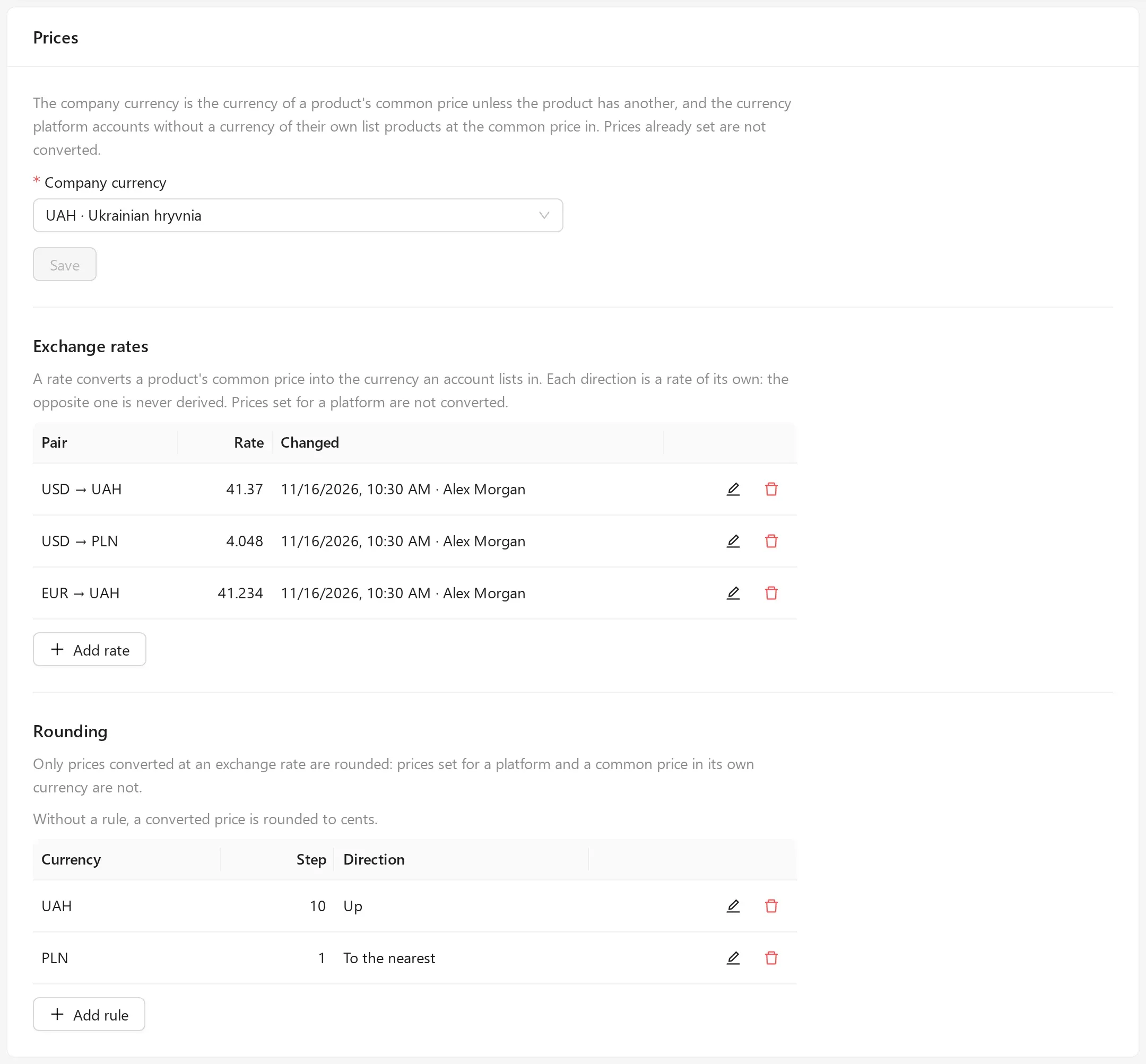
The company currency is used so that:
- new products get their common price in this currency (you can choose another one in the product itself);
- accounts without a currency of their own (Prom.ua and RIA.com with an empty currency field) list in it, if the platform accepts this currency;
- products can be compared when sorting by the common price.
Lekkolot always asks you to confirm a change of the company currency and shows how many listings it affects. Prices already set for products and platforms are not converted: products keep their currency, and the platforms’ own prices keep theirs.
Account currency
Section titled “Account currency”The account currency is the currency in which the account lists products at the common price.
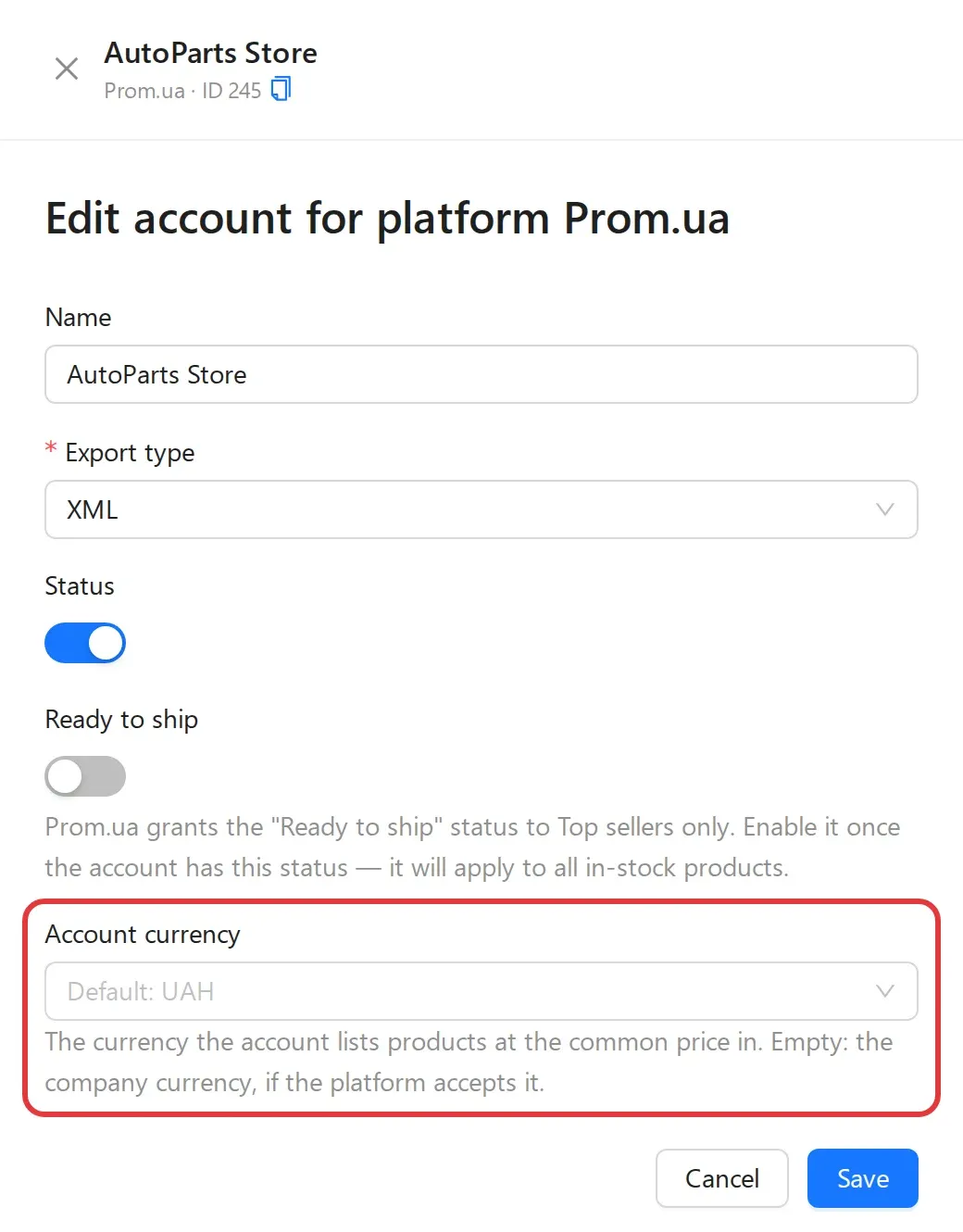
Where: Integrations → the platform in the list on the left → Edit on the account card → Account currency.
| Platform | Account currency | Possible currencies |
|---|---|---|
| OLX (Ukraine) | required field Account currency | UAH, USD, EUR |
| OLX (Poland) | required field Account currency | PLN, USD, EUR |
| Prom.ua | optional; when the field is empty, the company currency, if Prom.ua accepts it | UAH, USD, EUR |
| RIA.com | optional; when the field is empty, the company currency, if RIA.com accepts it | UAH, USD, EUR |
| Avtopro | required field Account currency | UAH, USD, EUR, PLN |
| Facebook Marketplace | required field Price currency | any |
| Allegro | always PLN, no field | PLN |
| eBay | the eBay account’s currency; it is not changed on the Integrations page | USD, EUR |
When the currency field of a Prom.ua or RIA.com account is empty, it shows which currency applies, for example Default: UAH. If the company currency does not suit the platform (for example, the company currency is PLN, while Prom.ua accepts only UAH, USD and EUR), an account without a currency of its own does not know which currency to list the common price in, and such listings are left without a price (“no currency”).
When you change the currency of an existing account, Lekkolot first shows how many listings at the common price this affects and how many of them will be left without a price if there is no exchange rate for the new pair of currencies. For OLX, the dialog also warns that the marketplace may refuse to change the currency of a listing that is already published, and such a listing then shows a synchronization error.
Exchange rates
Section titled “Exchange rates”Where: the Prices card → Exchange rates → Add rate. Enter From currency, To currency and Rate: how many units of the “to” currency are in one unit of the “from” currency. Under the field you see the formula, for example: a common price in USD × the rate = the price in UAH before rounding.
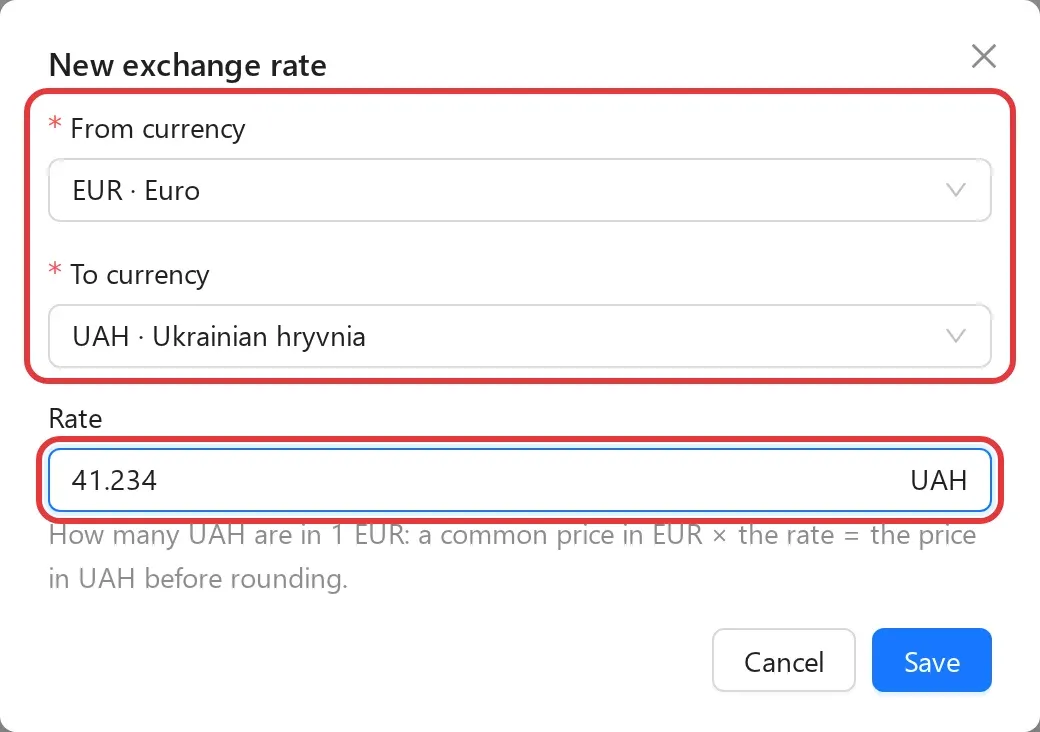
The table shows a rate as “1 USD = 41.37 UAH”, and the Changed column shows who changed it last and when. To change a rate, click the edit icon in its row: the pair stays the same, only the number changes.
How exchange rates work:
- a rate is needed only when the currency of a product’s common price differs from the account currency;
- each direction is a separate rate. The USD → UAH rate does not give a UAH → USD rate, and the opposite rate is never derived;
- rates are not chained. EUR → USD and USD → UAH do not add up to EUR → UAH: such a pair needs a rate of its own;
- a rate is above zero and has at most 8 decimal places;
- rates are entered by hand. They are not updated automatically: update them when you see fit;
- a rate that currently prices at least one listing cannot be deleted. Lekkolot shows how many such listings there are.
Which pair you need:
| The product’s common price is in | The account lists in | Rate needed |
|---|---|---|
| USD | UAH | USD → UAH |
| UAH | USD | UAH → USD |
| EUR | PLN | EUR → PLN |
| USD | USD | none |
Rounding
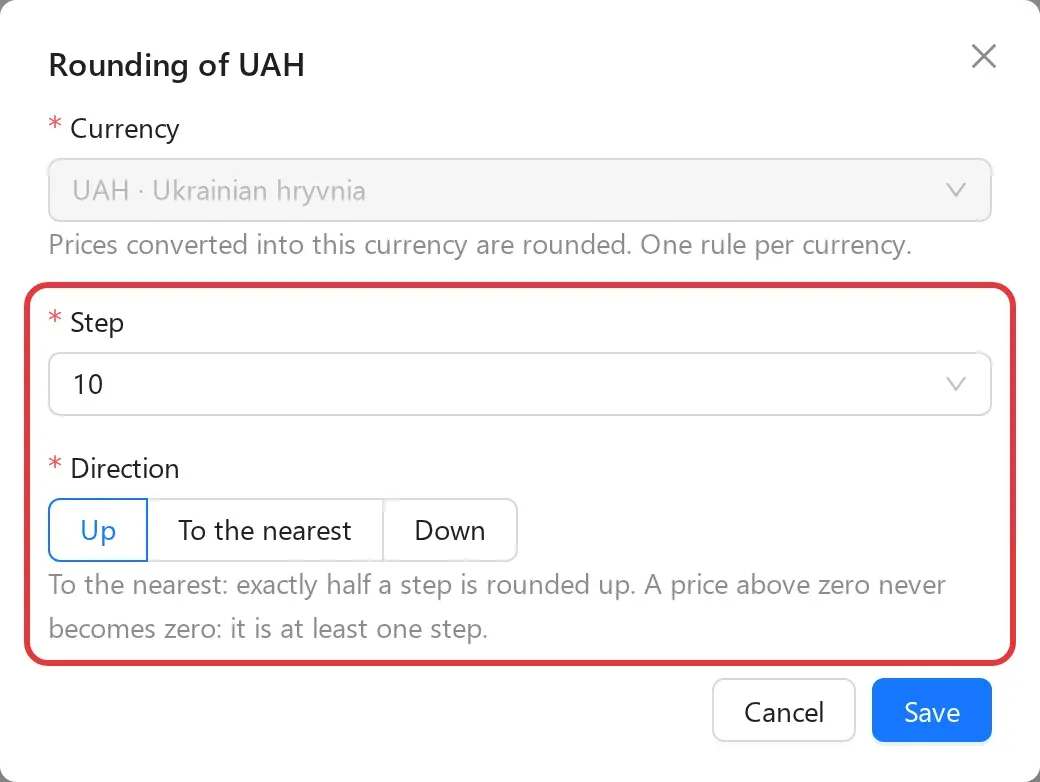
Section titled “Rounding”Where: the Prices card → Rounding → Add rule. Specify:
- Currency — prices converted into this currency will be rounded;
- Step — 0.01, 0.1, 0.5, 1, 5, 10, 50, 100, 500 or 1000;
- Direction — Up, To the nearest or Down.
How rounding works:
- each currency can have only one rule;
- only a price converted at an exchange rate is rounded. The platforms’ own prices and a common price in its own currency are not rounded;
- without a rule, a converted price is rounded to cents;
- with To the nearest, exactly half a step is rounded up;
- a price above zero never becomes zero: it is at least one step;
- Prom.ua and RIA.com accept only whole amounts. So there the rounding step is always at least 1 (the direction comes from your rule), and a common price in the same currency is rounded to the nearest whole number. Own prices on these platforms are whole numbers too.
Common price in a product
Section titled “Common price in a product”In the product form
Section titled “In the product form”Above the platform prices there is the Common price field with a currency selector. A new product gets the company currency, but you can choose another one. The hint icon next to the field’s name briefly explains how the common price reaches the platforms.
In the Platform prices column, leave a platform’s field empty if the platform should take the common price. The empty field shows the price the listing will go out with, for example “4,970 UAH — common price”. This hint updates as soon as you change the common price, its currency or the platform’s account.
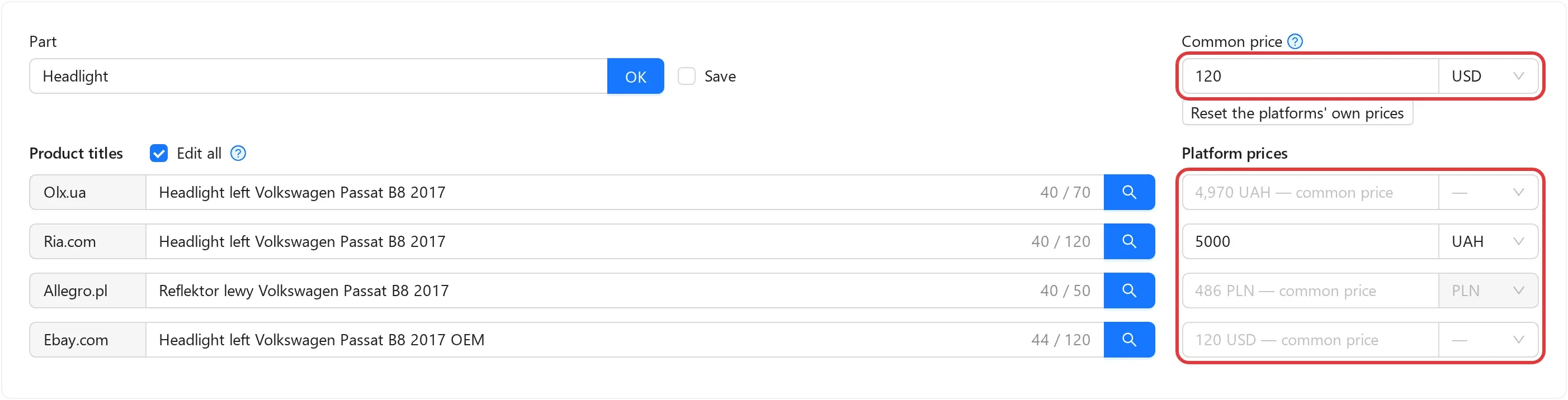
If the price cannot be computed, the field shows the reason, for example “Common price: no exchange rate”. Users who may manage the company see the Add the USD → UAH rate link under the field: it opens the Prices card in a new tab with the pair already selected, so only the rate is left to enter.

Good to know:
- if you clear the common price field, the price is removed, but the currency stays. The currency can be changed, but not removed;
- Lekkolot will not let you remove the common price or change its currency if a product that is past the Creation stage would then be left without a price on some platform. The message lists such platforms;
- for products past the Creation stage, a platform price is not required if the listing can take the common price;
- Avtopro has no currency selector next to the price: an own price there is always in the account’s currency;
- the Edit all checkbox applies to titles only. The same price for all platforms is what the common price is for;
- if the product is listed on eBay and you fill it in from an eBay item (the Ebay donor: field), the donor’s price becomes the common price in the donor’s currency, unless the product already has a common price in another currency.
On the products page
Section titled “On the products page”The product card shows the common price as “Common price: …” (or No common price). Click it to open the Edit common price window: the currency is shown next to the amount, and the Reset the platforms’ own prices checkbox also removes the own prices wherever the listing can take the common price. An empty field removes the common price.
Platform prices taken from the common price have a small link icon with the hint “The product’s common price”. If a price cannot be computed, a warning such as “no exchange rate” is shown instead.
A platform’s own price
Section titled “A platform’s own price”If a platform needs a different price, enter it in that platform’s field. It goes to the listing as is, in the selected currency, and no exchange rate or rounding rule changes it.
To make the platform take the common price again, clear its field. Or click Reset the platforms’ own prices under the common price in the form (on the products page, use the same checkbox in the Edit common price window). It removes the own prices only where the listing can take the common price. Other platforms keep their price, and Lekkolot tells you which ones.
Import from xlsx
Section titled “Import from xlsx”- The Column Mapping tab has the Common Price field and the Common Price Currency field (its currency: a code such as UAH, a name or an ID).
- An empty cell does not change the current value.
0removes the common price; the currency stays. - If the row has no currency, the product’s currency is used, and if there is none, the company currency. If there is neither, the price is not imported, and the report says so.
- Platform price columns work as before: a filled cell sets the platform’s own price. A currency the platform does not accept is not written, and the report says so.
- The Additional Options tab has the Reset platform prices to the common price switch. It applies to products that already exist in Lekkolot: platforms without a price in the row lose their own price and switch to the common price, but only where the listing can take it (in the same currency or at an existing exchange rate). The others keep their price, and the report lists them. A price in a filled platform cell becomes that platform’s own price. This switch does not reset Facebook Marketplace prices.
- An import does not remove the common price or change its currency if a product past the Creation stage would then be left without a price on some platform. Likewise, it does not write platform cells that would leave that platform’s listing without a price. All of this is in the report.
How changes of rates, rounding and currencies are applied
Section titled “How changes of rates, rounding and currencies are applied”When you change an exchange rate, a rounding rule, the company currency or an account currency, Lekkolot first works out how this affects the listings at the common price (of products past the Creation stage) and shows:
- Price changes, Price stays the same (e.g. thanks to rounding) and Left without a price;
- Average change, Largest increase and Largest decrease in percent;
- the same numbers for each account (By account).
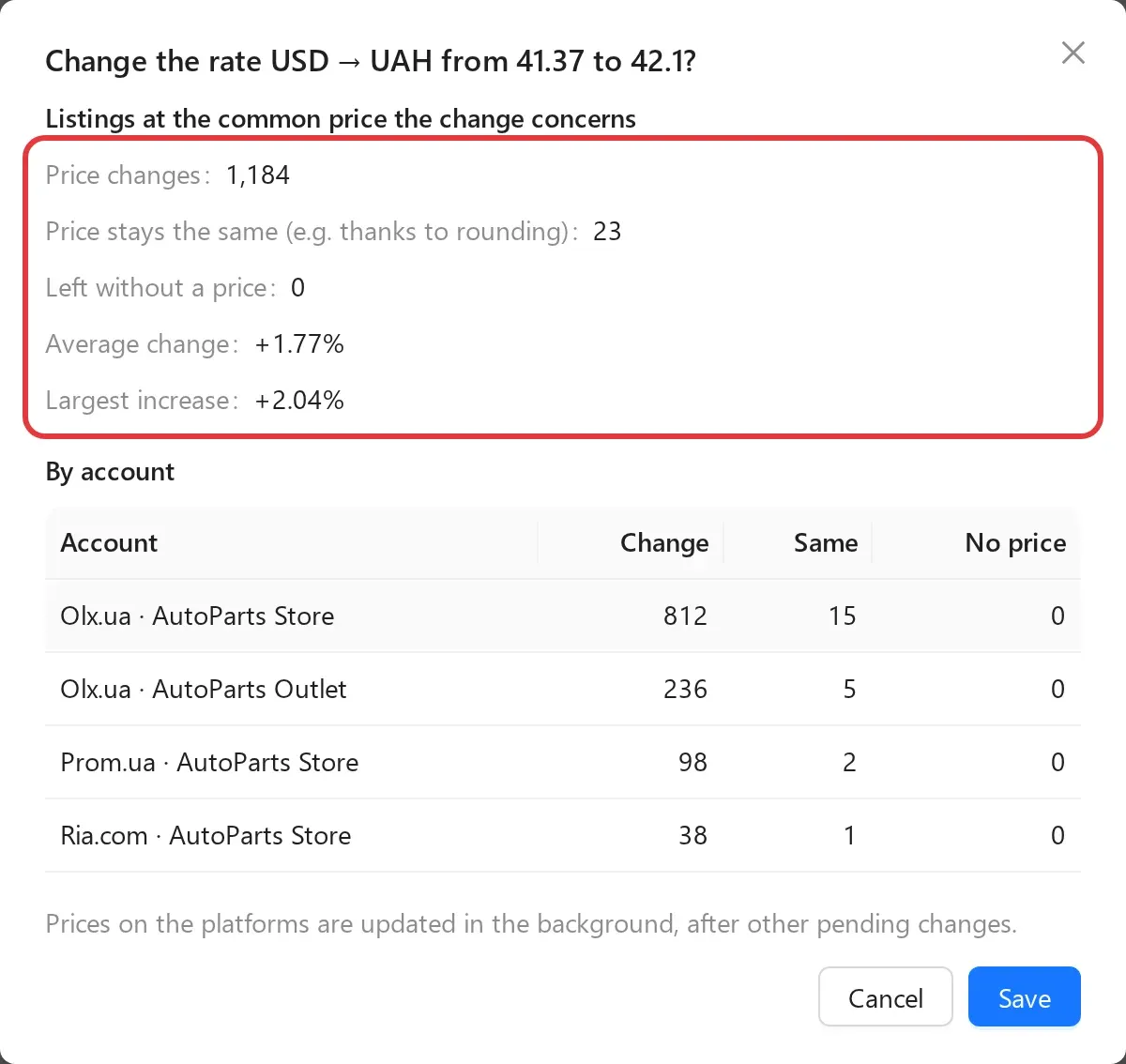
If there are very many listings, the numbers come from a random sample, and the dialog says so.
The change is saved only when you click Save. If a rate or a rule does not affect any listing (and the rate does not change too much, see below), it is saved at once, without the dialog. Lekkolot always asks you to confirm a change of the company currency and the deletion of a rounding rule.
A safeguard against typos in a rate. If the new rate differs from the current one by more than 20% either way, the save button becomes available only after a separate checkbox, Yes, the rate is right: save it. This protects against typos such as “4.1 instead of 41”. The first rate of a pair is not compared with anything, so check it carefully.
What happens after saving. Prices on the platforms are updated in the background, after other changes already waiting to be sent. Only the listings whose price really changed are sent to the marketplace. Platforms that take products from an import file (Prom.ua, RIA.com, Avtopro, Facebook Marketplace) see the new prices after the next scheduled update of the file: the schedule is on the Prom.ua, RIA.com and Avtopro pages.
None of these changes touch the platforms’ own prices. The only exception is the account currency of Avtopro and Facebook Marketplace, where an own price is always in the account’s currency (see Account currency).
Sorting products
Section titled “Sorting products”- The product list can be sorted by Common price. Products are compared in the company currency: prices in other currencies are converted at the exchange rate, without rounding. Products without a common price or without a rate to the company currency go to the end of the list.
- Sorting by a platform’s price also takes into account the price a listing takes from the common price.
Who can change what
Section titled “Who can change what”| What | Who |
|---|---|
| Company currency, exchange rates, rounding rules | a user who may manage the company; others see the Prices card but cannot change it |
| Account currency | a user who may edit platform accounts |
| A product’s common price and platform own prices | a user who may edit products (at the stages they are allowed to) |
Only users who may manage the company see the Add the … rate link in the product form. Others see the reason and can ask such a user to add the rate.
Examples
Section titled “Examples”All examples use these settings:
- company currency: UAH;
- exchange rates: USD → UAH = 41.37, USD → PLN = 4.048, USD → EUR = 0.9235;
- rounding: UAH — step 10, up; PLN — step 1, to the nearest; no rule for EUR (to cents).
Example 1. One price, several currencies
Section titled “Example 1. One price, several currencies”The product “Left headlight”, common price 120 USD.
| Platform (account currency) | Calculation | Listing price |
|---|---|---|
| OLX (UAH) | 120 × 41.37 = 4,964.40 → step 10 up | 4,970 UAH |
| Prom.ua (field empty, so the company currency UAH) | 4,964.40 → step 10 up | 4,970 UAH |
| Allegro (PLN) | 120 × 4.048 = 485.76 → step 1 to the nearest | 486 PLN |
| Avtopro (EUR) | 120 × 0.9235 = 110.82 → no rule, to cents | 110.82 EUR |
| eBay (USD) | same currency, no conversion | 120 USD |
| RIA.com (UAH), own price 5,000 UAH | the own price takes precedence | 5,000 UAH |
Example 2. The rate changes
Section titled “Example 2. The rate changes”You change the USD → UAH rate from 41.37 to 42.10 (+1.76%, which is under 20%, so no extra checkbox is needed).
| Platform | Was | Becomes |
|---|---|---|
| OLX | 4,970 UAH | 120 × 42.10 = 5,052 → 5,060 UAH |
| Prom.ua | 4,970 UAH | 5,060 UAH |
| RIA.com (own price) | 5,000 UAH | 5,000 UAH, unchanged |
| Allegro, Avtopro, eBay | as in example 1 | unchanged: they use other rates or no rate |
Before saving, the dialog shows how many listings will change price. After you confirm, the new prices go to the platforms in the background.
Example 3. Rounding “absorbed” the rate change
Section titled “Example 3. Rounding “absorbed” the rate change”The USD → UAH rate changed from 41.37 to 41.40: 120 × 41.40 = 4,968.00, rounded up to 10 — again 4,970 UAH. For this product the price does not change. In the preview, such listings are counted under Price stays the same (e.g. thanks to rounding), and nothing is sent to the marketplace for them.
Example 4. Same currency, no conversion
Section titled “Example 4. Same currency, no conversion”The product “Right mirror”, common price 4,999.99 UAH.
| Platform (account currency) | What happens | Listing price |
|---|---|---|
| OLX (UAH) | same currency; the UAH rounding rule does not apply | 4,999.99 UAH |
| Prom.ua (UAH) | Prom.ua accepts only whole amounts, so to the nearest whole number | 5,000 UAH |
| eBay (USD) | needs the UAH → USD rate; the USD → UAH rate does not fit | “no exchange rate” until you add UAH → USD |
| Allegro (PLN) | needs the UAH → PLN rate | “no exchange rate” until you add UAH → PLN |
Example 5. Prom.ua and RIA.com: whole amounts only
Section titled “Example 5. Prom.ua and RIA.com: whole amounts only”The EUR → UAH rate is 41.234, a product at 10 EUR = 412.34 UAH before rounding.
| UAH rule | OLX | Prom.ua |
|---|---|---|
| none (to cents) | 412.34 UAH | 412 UAH |
| step 0.5, up | 412.50 UAH | 413 UAH |
| step 0.5, down | 412.00 UAH | 412 UAH |
| step 10, to the nearest | 410 UAH | 410 UAH |
On Prom.ua and RIA.com the step cannot be less than 1, and the direction comes from your rule.
A price is never rounded to zero. For example, a small part at 0.20 USD is 8.27 UAH at the rate, and with the “step 10, down” rule it goes out at 10 UAH, not 0.
Example 6. No exchange rate
Section titled “Example 6. No exchange rate”The product “Front bumper”, common price 300 EUR, an OLX account in UAH. The company has a USD → UAH rate but no EUR → UAH rate.
- In the product form, the OLX price field shows “Common price: no exchange rate” and the Add the EUR → UAH rate link.
- The product card shows the “no exchange rate” warning instead of the price.
- The listing is not sent to the marketplace, and the synchronization status shows “no exchange rate”.
- On platforms that take products from an import file (Prom.ua, RIA.com, Avtopro, Facebook Marketplace), such a product is left out of the file until its price can be computed.
- If the product is past the Creation stage, the form asks for a price for such a platform. Add the rate or enter an own price.
As soon as you add the EUR → UAH rate, the listing prices are updated in the background by themselves. There is no need to click Try again.
Example 7. A typo in the rate
Section titled “Example 7. A typo in the rate”You wanted to change the USD → UAH rate from 41.37 to 42.10, but typed 4.21 by mistake. Lekkolot shows “The rate changes by −89.82%” and the warning “The current rate is 41.37, the new one 4.21. Check it for a typo (e.g. 4.1 instead of 41).” You can save only after ticking Yes, the rate is right: save it. So just correct the number.
If something goes wrong
Section titled “If something goes wrong”Typical situations — “no exchange rate”, a rate entered the wrong way round, a price that did not change after a rate change, a product missing from the import file — and what to do about them are collected on the Prices and currencies: common problems page.